[INTERNAL] How to use the FNO Reporter
Anonym
The FNO Reporter provides information on existing entitlements based on custom built queries.
For instance one can query how many licenses of an entitlement have already been used and how many are still available.
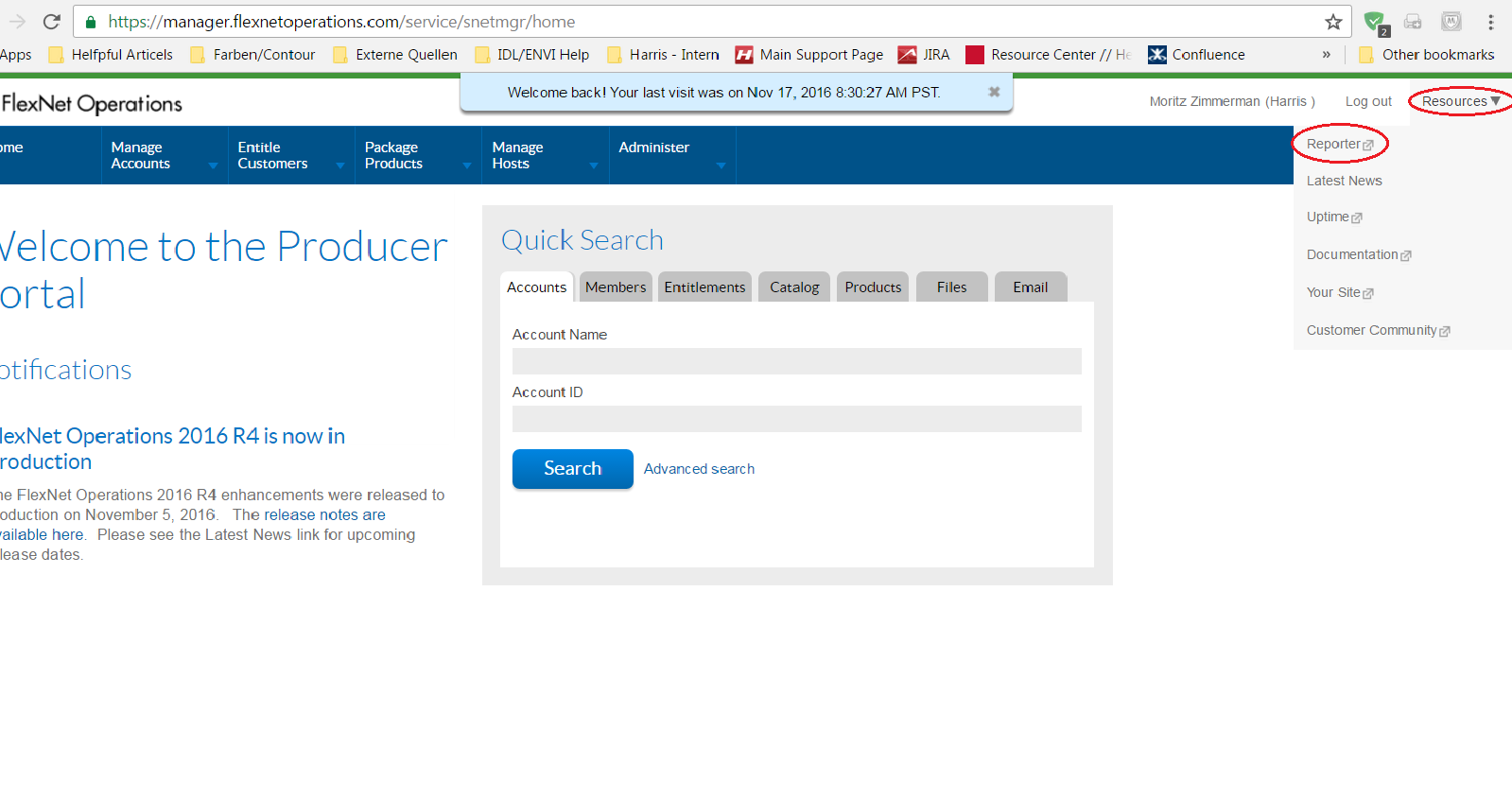
The FNO Reporter can be accessed via FNO à Resources à Reporter
Use predefined queries built by colleagues:
In case a colleague already built a query and shared it with you, you will find the query in your Inbox
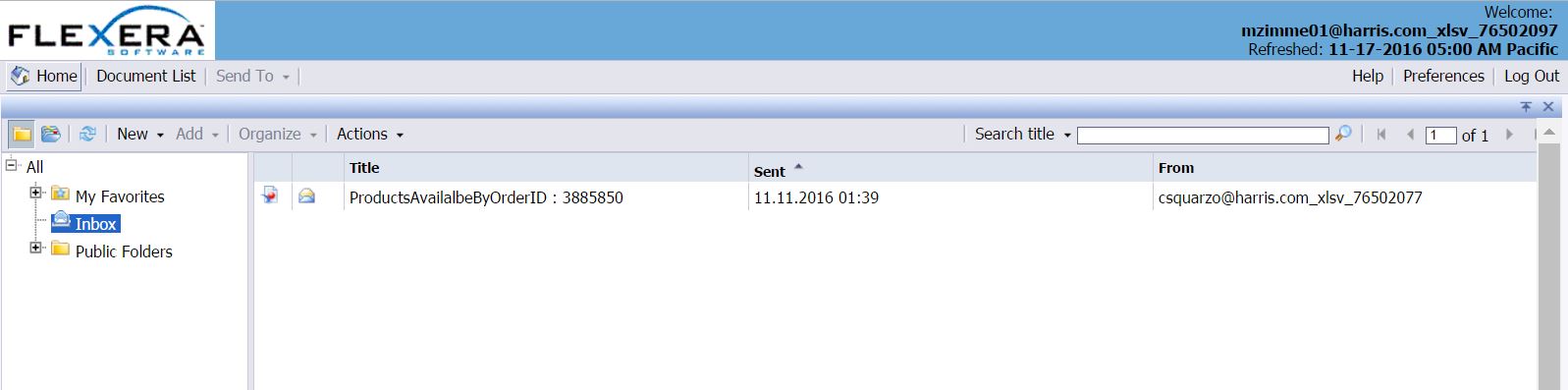
In order to run the query, double-click on it and select “Refresh Data”.
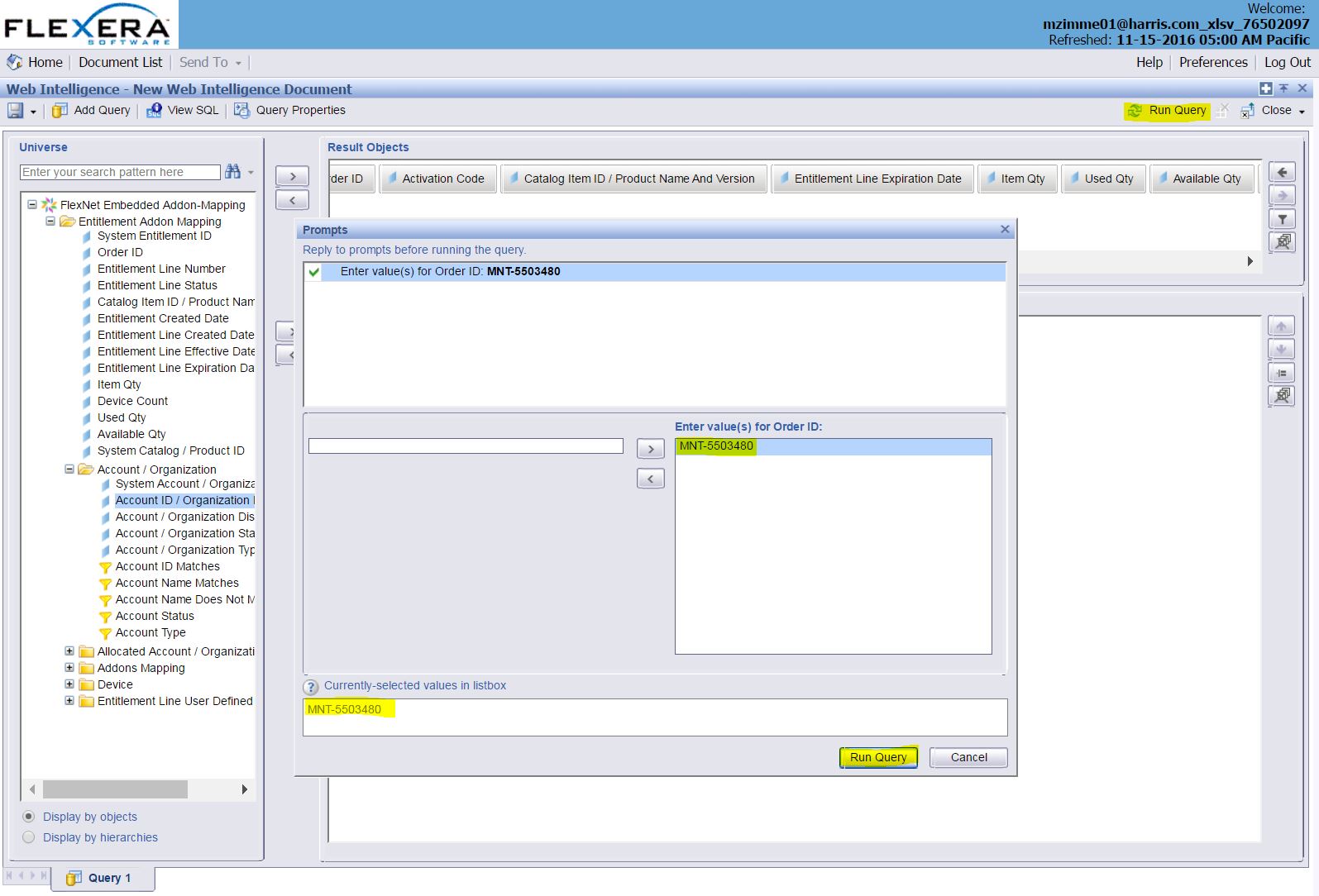
In this example, we are looking for an entitlement:
How to build a custom query
1. From the FNO main view select New à Web Intelligence Document
2. From the list select FlexNet Embedded Addon-Mapping
3. Add the items you want to obtain information about to the “Result Objects” Window
4. Add items which you like to filter (i.e. entitlements) to “Query Filters”
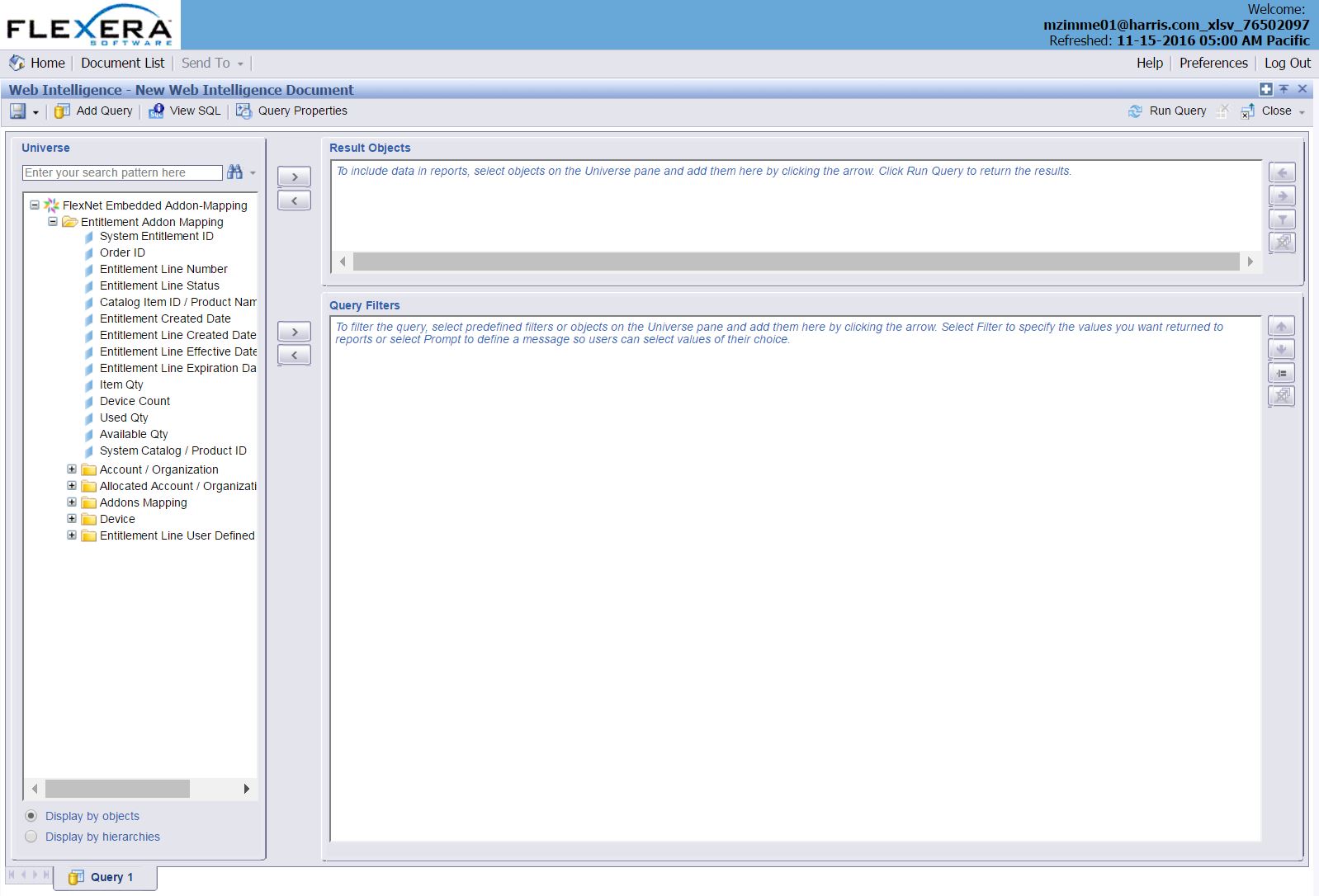
5. Once configured click on “Run Query” and enter the appropriate information
The FNO Reporter provides information on existing entitlements based on custom built queries.
For instance one can query how many licenses of an entitlement have already been used and how many are still available.
The FNO Reporter can be accessed via FNO à Resources à Reporter
Use predefined queries built by colleagues:
In case a colleague already built a query and shared it with you, you will find the query in your Inbox
In order to run the query, double-click on it and select “Refresh Data”.
In this example, we are looking for an entitlement:
How to build a custom query
1. From the FNO main view select New à Web Intelligence Document
2. From the list select FlexNet Embedded Addon-Mapping
3. Add the items you want to obtain information about to the “Result Objects” Window
4. Add items which you like to filter (i.e. entitlements) to “Query Filters”
5. Once configured click on “Run Query” and enter the appropriate information
The FNO Reporter provides information on existing entitlements based on custom built queries.
For instance one can query how many licenses of an entitlement have already been used and how many are still available.
The FNO Reporter can be accessed via FNO à Resources à Reporter
Use predefined queries built by colleagues:
In case a colleague already built a query and shared it with you, you will find the query in your Inbox
In order to run the query, double-click on it and select “Refresh Data”.
In this example, we are looking for an entitlement:
How to build a custom query
1. From the FNO main view select New à Web Intelligence Document
2. From the list select FlexNet Embedded Addon-Mapping
3. Add the items you want to obtain information about to the “Result Objects” Window
4. Add items which you like to filter (i.e. entitlements) to “Query Filters”
5. Once configured click on “Run Query” and enter the appropriate information
The FNO Reporter provides information on existing entitlements based on custom built queries.
For instance one can query how many licenses of an entitlement have already been used and how many are still available.
The FNO Reporter can be accessed via FNO à Resources à Reporter
Use predefined queries built by colleagues:
In case a colleague already built a query and shared it with you, you will find the query in your Inbox
In order to run the query, double-click on it and select “Refresh Data”.
In this example, we are looking for an entitlement:
How to build a custom query
1. From the FNO main view select New à Web Intelligence Document
2. From the list select FlexNet Embedded Addon-Mapping
3. Add the items you want to obtain information about to the “Result Objects” Window
4. Add items which you like to filter (i.e. entitlements) to “Query Filters”
5. Once configured click on “Run Query” and enter the appropriate information
The FNO Reporter provides information on existing entitlements based on custom built queries.
For instance one can query how many licenses of an entitlement have already been used and how many are still available.
The FNO Reporter can be accessed via FNO à Resources à Reporter
Use predefined queries built by colleagues:
In case a colleague already built a query and shared it with you, you will find the query in your Inbox
In order to run the query, double-click on it and select “Refresh Data”.
In this example, we are looking for an entitlement:
How to build a custom query
1. From the FNO main view select New à Web Intelligence Document
2. From the list select FlexNet Embedded Addon-Mapping
3. Add the items you want to obtain information about to the “Result Objects” Window
4. Add items which you like to filter (i.e. entitlements) to “Query Filters”
5. Once configured click on “Run Query” and enter the appropriate information