Edit Keras Training Model Metadata
The Edit Keras Model Metadata tool allows you to edit the metadata that was saved with the trained Keras model file.
-
In the ENVI Toolbox, select Deep Learning > Edit Keras Model Metadata. The Edit Training Model Metadata (Keras) dialog appears.
You can also access the Edit Training Model Metadata (Keras) dialog through the Deep Learning Guide Map with this sequence: select Tools > Edit Deep Learning Model Metadata from the Guide Map menu, then select an *.h5 model file and click Open.
- The filename and path for the model displays in the File field.
- The Name is a short, descriptive name that reflects what the model does. This helps recognize the model when viewing results or reusing the model later.
- The Author is the name of the individual or team responsible for developing or training the model. This identifies the contributor(s) to document their ownership, efforts, and expertise.
- The Version number tracks the iteration or release of the model for documentation, debugging, and compatibility purposes. This number can be incremented if the model already exists and you are publishing a new version of it. For example: 1.1.0.
- The License under which the model is distributed. This ensures compliance with the legal and permitted use requirements associated with the model.
- The Date when the Keras model version was created.
-
Tile Overlap is the number of pixels that will define a margin on all sides of each detection patch, forming a center-focused field of view (FOV). For example:
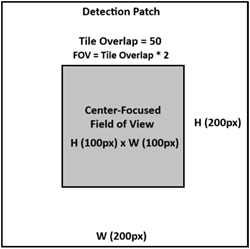
- The Description is a summary of the Keras model, including purpose, key features, and relevant details about training or application. These details are intended for the users of the model.
- Class Names are the class labels that the Keras model was trained to recognize. Each label corresponds to a specific feature or category in the dataset used for training.
- The Class Colors correspond to the Class Namesand they define the colors to represent the corresponding class. To change the color for that definition, double-click on it and choose a different color from the color picker. Class colors are used for visualization purposes, such as rendering segmentation masks or labeling detected objects.
- The Wavelength specifies an array of raster spectral wavelength values, one per band for the number of bands the model was trained with. Bands with matching wavelengths for the input raster will be used during classification, if provided.
-
From the Wavelength Units drop-down list, specify one of the following:
This is typically based on the type of data the model was trained with.
-
From the Type drop-down list, specify the deep learning model to use. This determines the method and output format of the analysis or processing. The options are:
- Grid
- Object Detection
- Pixel Segmentation
- The architecture used to train the model displays in the Architecture field.
- The height and width (in pixels) and the number of bands of the input image displays in the Dimensions field.
- Click OK to save the changes.